Error:
The ntext data type cannot be selected as DISTINCT because it is not comparable
Prob: Union fails, If a table contains nText datatype field
Answer: Use nVarChar(MAX)(This works only SQL 2005 and Above versions)
Similarly, use VarChar(MAX) for TEXT, varbinary(max) for image
Wednesday, July 29, 2009

Tuesday, July 14, 2009
Conenction in tns ORA file for conencting to Oracle data base
For conencting to Oracle database, First you need to create connection string in TNS ORA file.
1) go to C:\ORANT\NETWORK\ADMIN
2) Open tns names.ora file
3) Modify your variable in the following string
EXTPROC_CONNECTION_DATA =
(DESCRIPTION =
(ADDRESS_LIST =
(ADDRESS = (PROTOCOL = TCP)(HOST = HOSTNAME)(PORT = 1521))
)
(CONNECT_DATA =
(SERVICE_NAME = PLSExtProc)
)
)
1) go to C:\ORANT\NETWORK\ADMIN
2) Open tns names.ora file
3) Modify your variable in the following string
EXTPROC_CONNECTION_DATA =
(DESCRIPTION =
(ADDRESS_LIST =
(ADDRESS = (PROTOCOL = TCP)(HOST = HOSTNAME)(PORT = 1521))
)
(CONNECT_DATA =
(SERVICE_NAME = PLSExtProc)
)
)
Connecting to Databases from SSIS COnnection manager
Couple of guys asked me about conencting to ACCESS from SSIS. I thought, It's betetr to put in my blog..
1) Right click in Connection manager window(Which is appear at the bottom of the visual studio)
2) Select New OLEDB Connection
3) You will get "Configure OLEDB Connection Manger:" window. Click on NEW button
4) Select Provider, What ever database you want to connect
Ex: use OLEDB\SQL Native Client for connecting to SQL, Native OLEDB\Microsoft JEt4.0 OLEDB Provider for connecting to ACCESS, Microsoft OLEDB Provider for Oracle for Oracle e.t.c..
5)Select the file if data base is Access, Eneter server name if you want to connect to SQL, For conencting the Oracle data base you need to use Server variable which is used in tns ORA file(For creating connection string in tns ora file Click here).
6) Click on Test Conenction to amke sure whether it's conencted or not.
7) Click Ok
1) Right click in Connection manager window(Which is appear at the bottom of the visual studio)
2) Select New OLEDB Connection
3) You will get "Configure OLEDB Connection Manger:" window. Click on NEW button
4) Select Provider, What ever database you want to connect
Ex: use OLEDB\SQL Native Client for connecting to SQL, Native OLEDB\Microsoft JEt4.0 OLEDB Provider for connecting to ACCESS, Microsoft OLEDB Provider for Oracle for Oracle e.t.c..
5)Select the file if data base is Access, Eneter server name if you want to connect to SQL, For conencting the Oracle data base you need to use Server variable which is used in tns ORA file(For creating connection string in tns ora file Click here).
6) Click on Test Conenction to amke sure whether it's conencted or not.
7) Click Ok
Wednesday, June 17, 2009
Creating new SSIS package got error: Failed to save package file with error 0x8002802B Element not found
Problem:
Error when creating new SSIS package:
Failed to save package file 'C:\documents and settings\local settings\temp\tmp172.tmp" with error 0x8002802B Element not found

Solution:
1) From the start menu, click run
2) enter the code: regsvr32 %windir%\system32\msxml6.dll
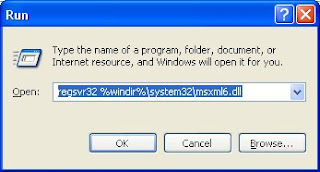
3) click enter
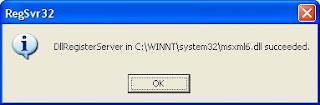
4)RegSvr32 pop up will come up, Click OK
Error when creating new SSIS package:
Failed to save package file 'C:\documents and settings\local settings\temp\tmp172.tmp" with error 0x8002802B Element not found

Solution:
1) From the start menu, click run
2) enter the code: regsvr32 %windir%\system32\msxml6.dll

3) click enter
4)RegSvr32 pop up will come up, Click OK

Friday, February 20, 2009
Compare two complete ROWS( all columns of each row) in two seperate TABLES
If you have two separate tables with same primary key and want to check the updates in the other table,using BINARY_CHECKSUM would be the best answer. But need to careful about column data types. Column Data types shouldn't be text, ntext, image, XML, and cursor.
Here is T-SQL query to compare two rows from different table:
Take ORDERS1 as one table and ORDERS2 as other table
SELECT ORDERS1.PRIMARYKEY_ID
FROM
(SELECT PRIMARYKEY_ID, BINARY_CHECKSUM(*) AS CHECKVALUE FROM ORDERS1) AS CHECKSUMTABLE1
INNER JOIN
(SELECT PRIMARYKEY_ID, BINARY_CHECKSUM(*) AS CHECKVALUE FROM ORDERS2) AS CHECKSUMTABLE2
ON CHECKSUMTABLE1.PRIMARYKEY_ID= CHECKSUMTABLE2.PRIMARYKEY_ID
WHERE CHECKSUMTABLE1.CHECKVALUE <> CHECKSUMTABLE2.CHECKVALUE
Here is T-SQL query to compare two rows from different table:
Take ORDERS1 as one table and ORDERS2 as other table
SELECT ORDERS1.PRIMARYKEY_ID
FROM
(SELECT PRIMARYKEY_ID, BINARY_CHECKSUM(*) AS CHECKVALUE FROM ORDERS1) AS CHECKSUMTABLE1
INNER JOIN
(SELECT PRIMARYKEY_ID, BINARY_CHECKSUM(*) AS CHECKVALUE FROM ORDERS2) AS CHECKSUMTABLE2
ON CHECKSUMTABLE1.PRIMARYKEY_ID= CHECKSUMTABLE2.PRIMARYKEY_ID
WHERE CHECKSUMTABLE1.CHECKVALUE <> CHECKSUMTABLE2.CHECKVALUE
Wednesday, February 18, 2009
Apply page themes programmatically
apply a page themes programmatically:
Need to set page's 'Theme' Property in Page's Preint event
protected void Page_PreInit(object sender, EventArgs e)
{
switch (Request.QueryString["theme"])
{
case "Orange":
Page.Theme = "OrangeTheme";
break;
case "skyblue":
Page.Theme = "skyblueTheme";
break;
}
}
apply a style sheet themes programmatically:
Override 'StyleSheetTheme" propert in page code. Following code override existing code and set current page theme as 'SkyblueTheme'
public override String StyleSheetTheme
{
get { return "SkyblueTheme"; }
}
Apply Contol SKINS programmatically:
We can over ride control skin properties in PreInt event
void Page_PreInit(object sender, EventArgs e)
{
Calendar1.SkinID = "CustomSkin";
}
Need to set page's 'Theme' Property in Page's Preint event
protected void Page_PreInit(object sender, EventArgs e)
{
switch (Request.QueryString["theme"])
{
case "Orange":
Page.Theme = "OrangeTheme";
break;
case "skyblue":
Page.Theme = "skyblueTheme";
break;
}
}
apply a style sheet themes programmatically:
Override 'StyleSheetTheme" propert in page code. Following code override existing code and set current page theme as 'SkyblueTheme'
public override String StyleSheetTheme
{
get { return "SkyblueTheme"; }
}
Apply Contol SKINS programmatically:
We can over ride control skin properties in PreInt event
void Page_PreInit(object sender, EventArgs e)
{
Calendar1.SkinID = "CustomSkin";
}
Sunday, February 8, 2009
Save not permitted in SQL Server 2008 Express Management Studio
I got the following message, When I was trying to change or add new columns for tables in SQL Server 2008 Express.
Message: " Save not Permitted. The changes you have made require the following tables need to dropped and re-created. you have either made changes to a table that can't be re-created or enabled the option preventing saving changes that require table to b re-created."
The only choice I had was to click to cancel, or to choose to save the message to a text file. Which won't useful to us. I found the answer for this bug in SQL Online. here it is..
Solution:
Go to Tools -> Options -> Designers -> Uncheck "Prevent saving changes that requires table re-creation"
I hope it works for you also...
Message: " Save not Permitted. The changes you have made require the following tables need to dropped and re-created. you have either made changes to a table that can't be re-created or enabled the option preventing saving changes that require table to b re-created."
The only choice I had was to click to cancel, or to choose to save the message to a text file. Which won't useful to us. I found the answer for this bug in SQL Online. here it is..
Solution:
Go to Tools -> Options -> Designers -> Uncheck "Prevent saving changes that requires table re-creation"
I hope it works for you also...
Subscribe to:
Posts (Atom)